Working from home has definitely highlighted how frustrating it can be making sure that all of your peripherals are working together seamlessly when you are about to hold a meeting that you need to go without a hitch.
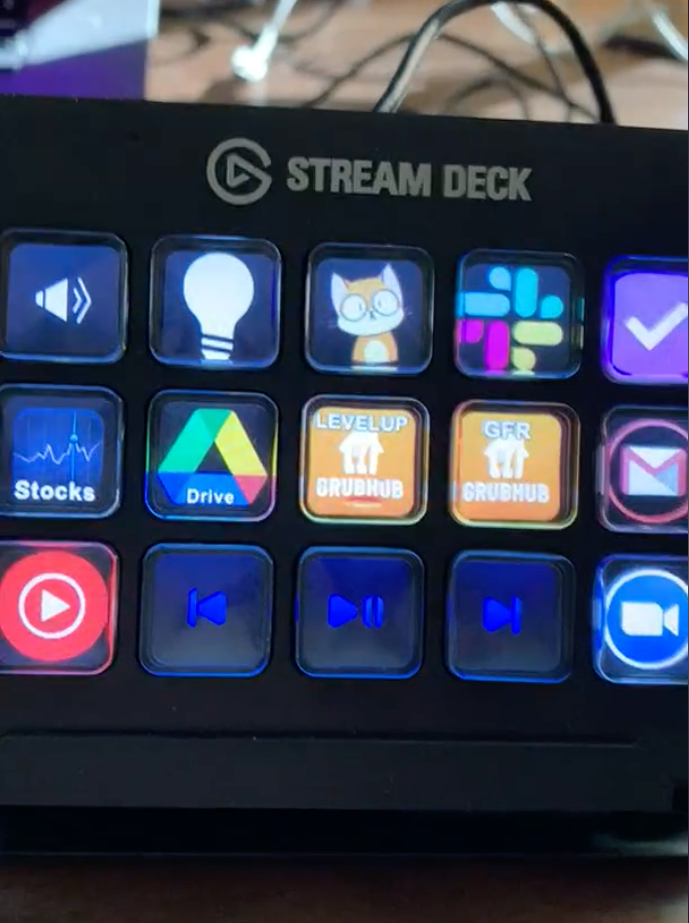
For less than $100, I found a really great hardware solution (the Elgato Stream Deck) that I’ve been using to solve some of my woes. Ranked for importance – here’s my set of needs:
- Stop that audioSwitch audio input/output in one click. Nothing like doing the typical “I can’t hear you” dance and spending 30 seconds holding everyone up in System Preferences or menu bar
- Stay outside of Zoom. Turn my microphone/video being on on/off, and exit a meeting without having to have Zoom active. (Silence that awkward clacking as you’re searching in your IDE of choice – or maybe answer a question while you’re in there without breaking your flow)
- Lighting management. Let’s make sure I can set my Hue lights to the right preset room scenes so that I can show up visibly when the sun isn’t up.
If you’re interested in more – I’d highly check out starting with the audio output switcher command line tool switchaudio-osx. A sample bash script I set to run (with the correct executable flag set) to switch my input to my headset looks like this:
/usr/local/bin/SwitchAudioSource -t input -s "Bose PC Desktop Controller"
osascript -e 'display notification "Input set to: Bose Headset" with title "Input Device Changed"' Connor MacDonald